
On the Day of Your Telehealth (Video) Visit
You or your child’s next visit with Nationwide Children’s Hospital will be by telehealth using Epic Video Client and your MyChart account. Telehealth lets us help you and your child without an in-person visit.
Things you will need before your video visit:
- MyChart Account
- Smart phone, tablet or computer with camera and mic
If you need an interpreter, once you have joined the call with your provider, the provider can connect an interpreter to the video visit.
On the day of your visit, log in to your MyChart account 15-30 minutes before the visit time.
If Using a Computer:
Check in prior to your appointment
Please complete eCheck-In before the start of your telehealth appointment.
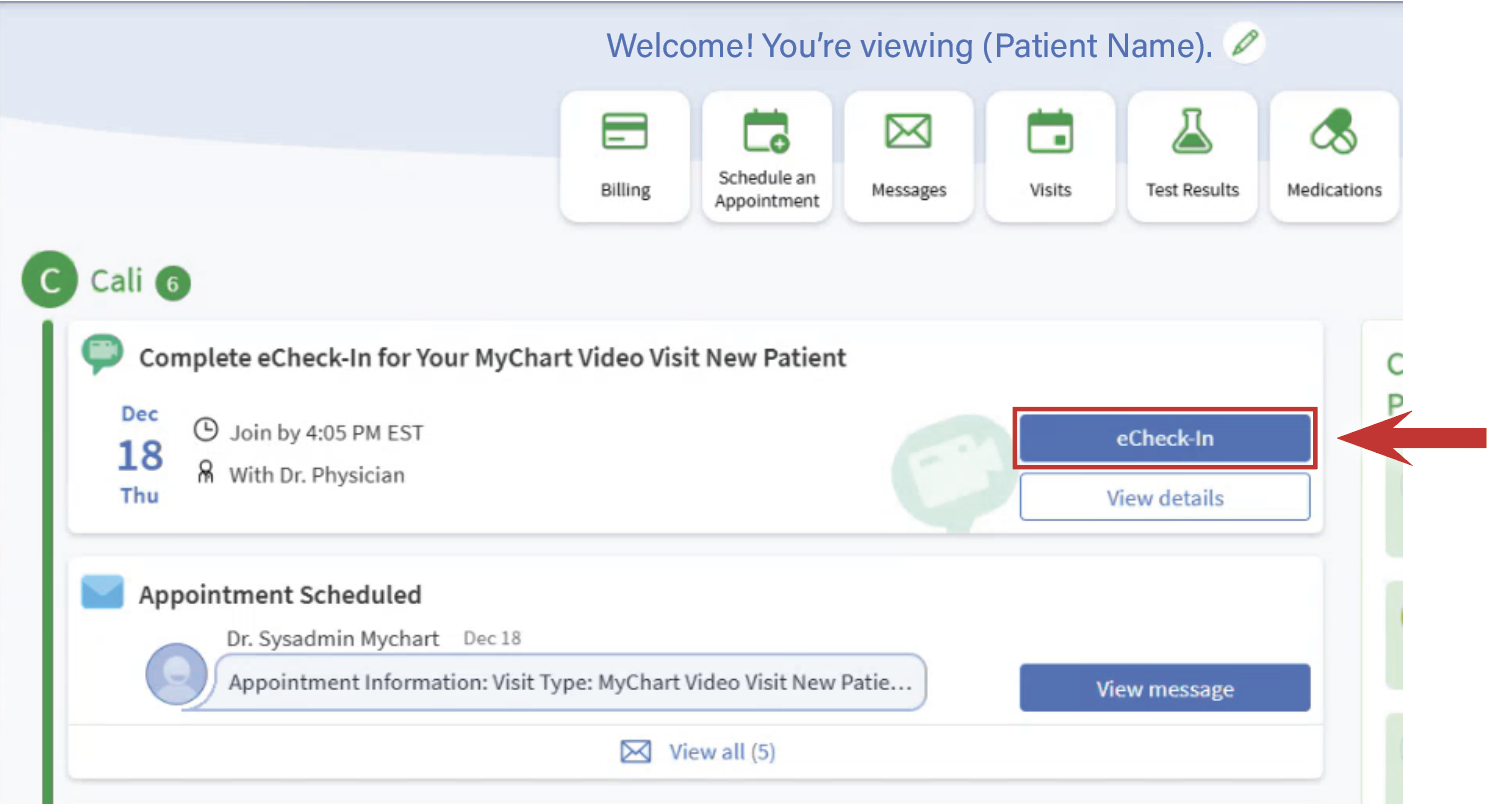
During eCheck-In, you will:
- Verify and update personal, insurance and health information
- Sign consent forms
- Complete questionnaires
You are automatically checked into your telehealth appointment once you complete the eCheck-In process.
Join the Video Visit
1. After completing eCheck-In, you are ready to begin the video visit.
- You can invite others to join the visit with you. A text or email with a link to join the video visit will be sent to them.
- If you are ready to join: select “Join Video Visit” The link is active 30 minutes before your appointment time.
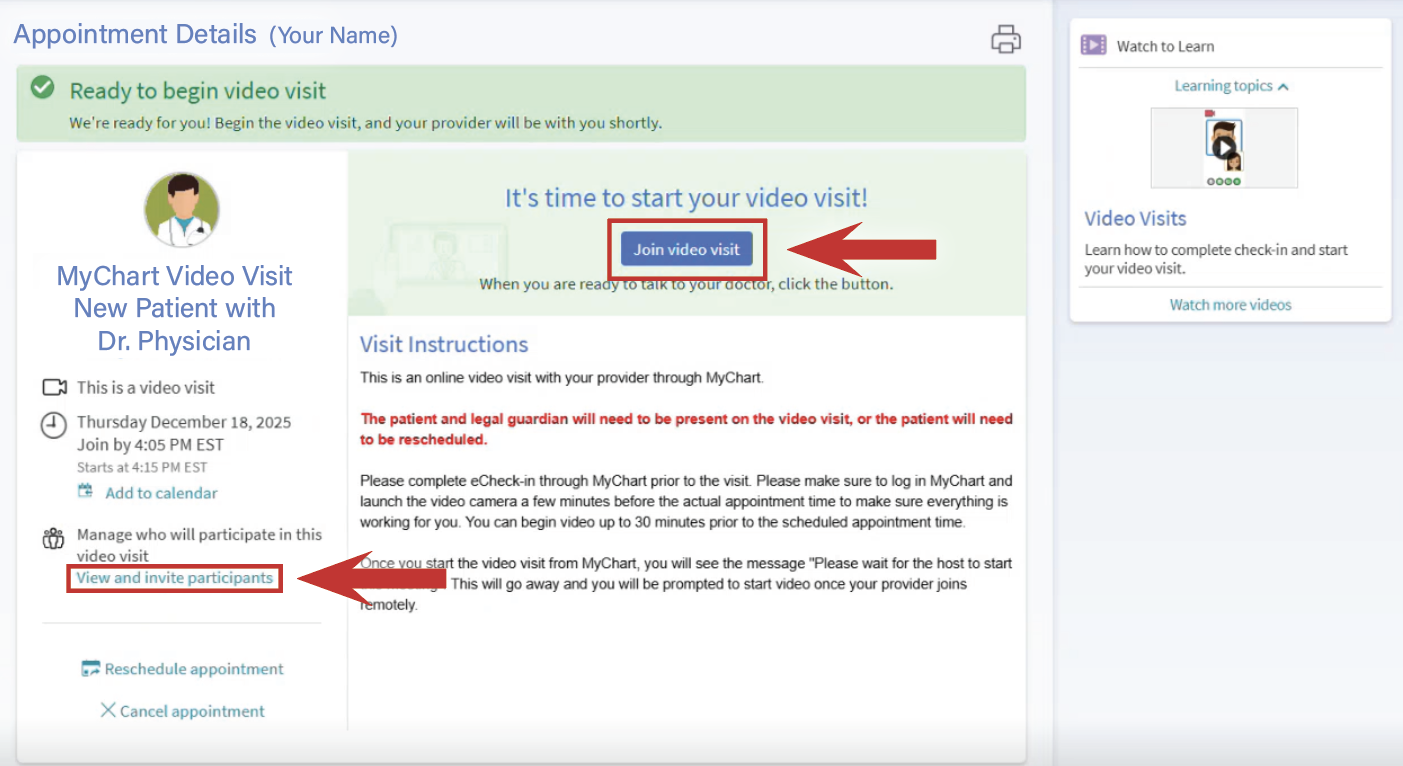
2. After you select “Join Video Visit,” your device’s default browser will launch.
3. At this point, you can:
- Check your camera and microphone.
- Test your speakers.
- Change the background.
- Change the display name that appears (except for group visits).
4. When you’re ready, select the “Join Call” button.
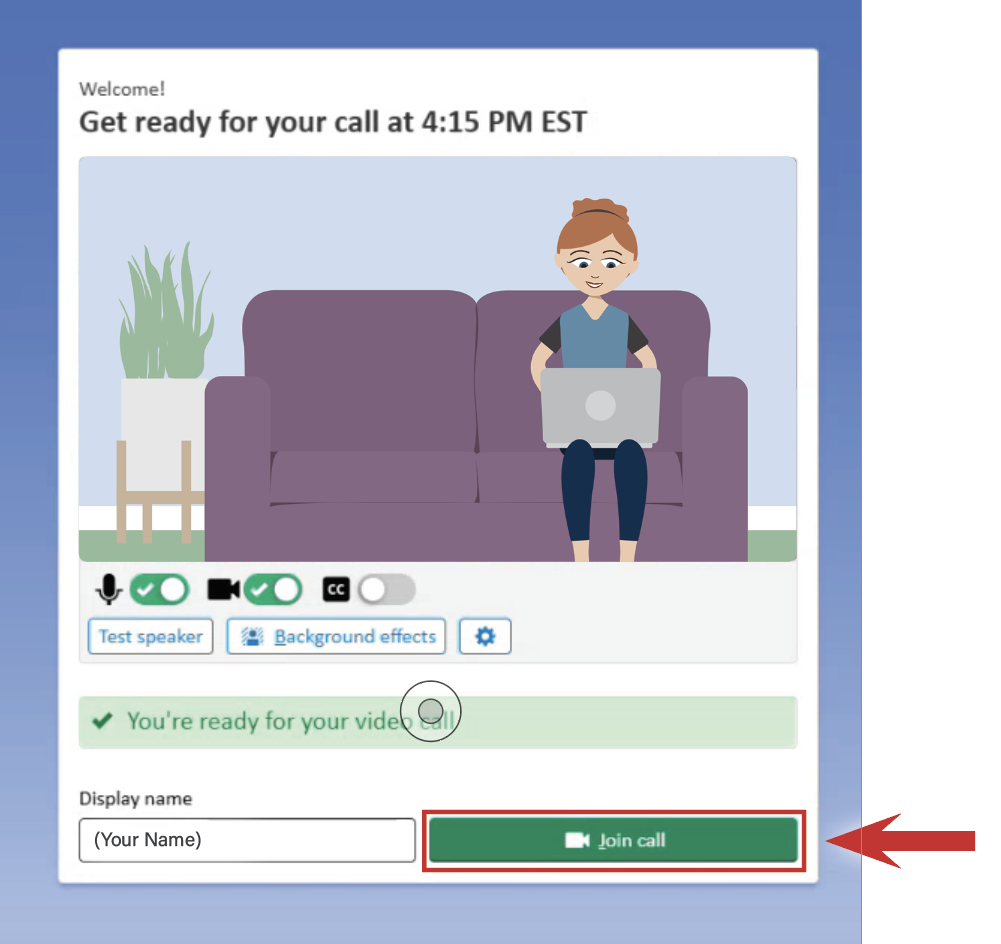
You will join a virtual waiting room until your provider joins the call too.
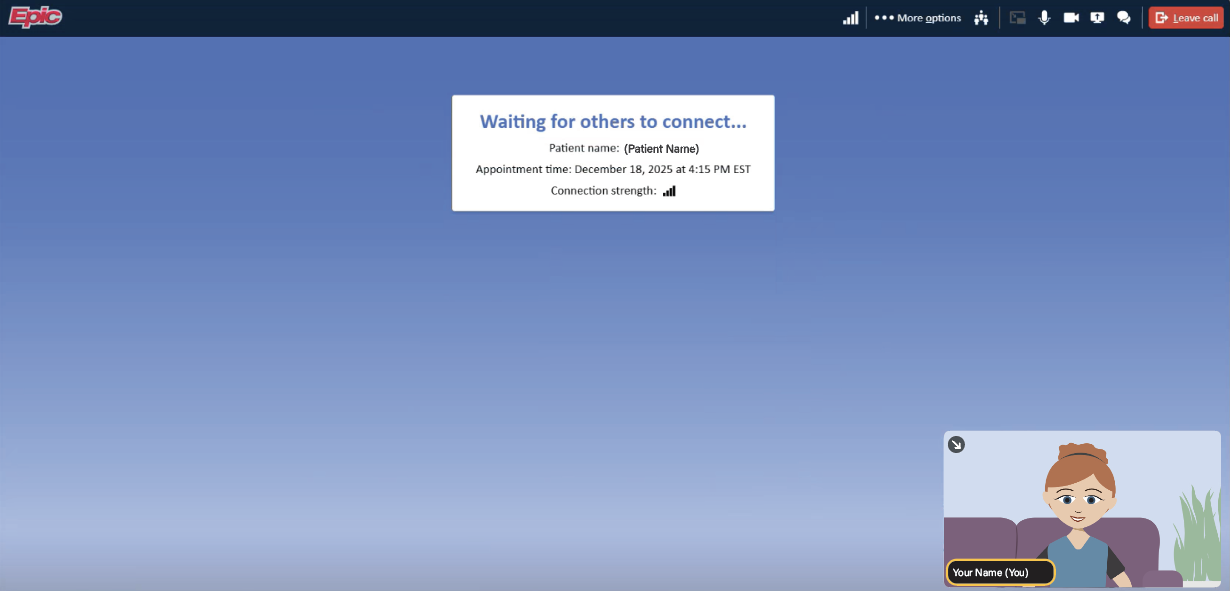
Navigate the Video Visit
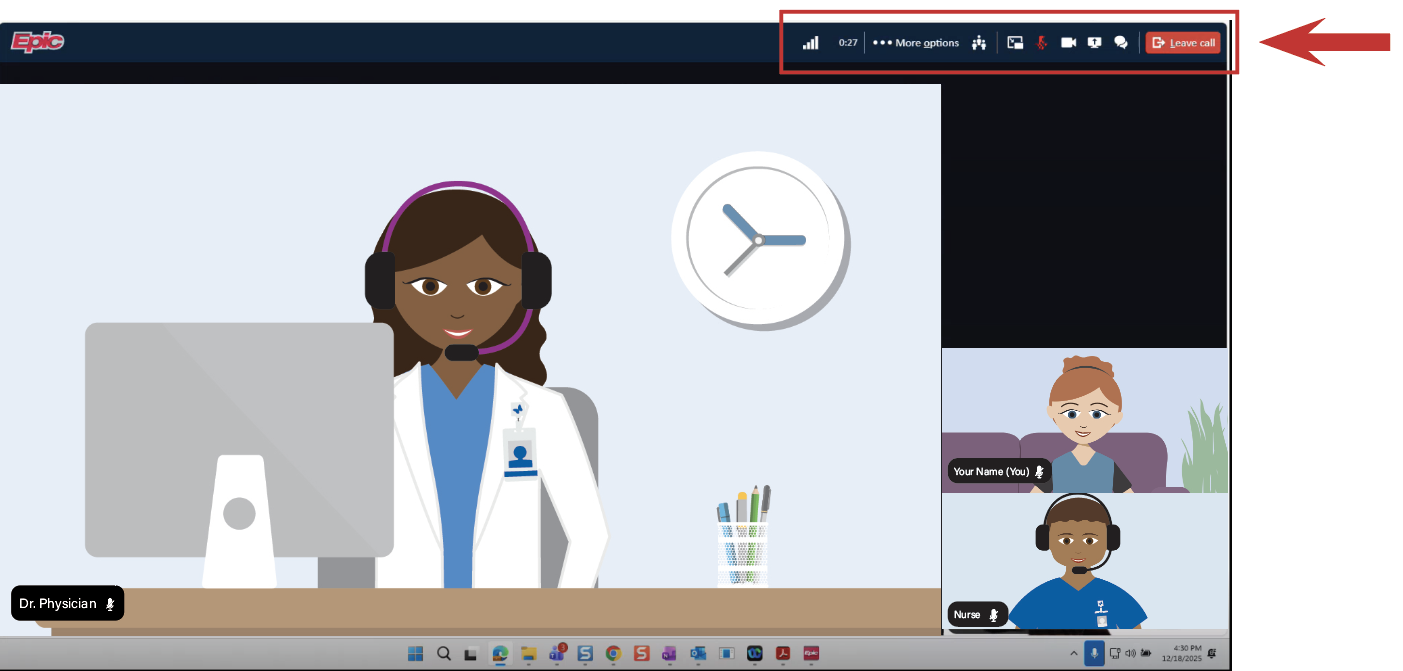
- Select the microphone icon to mute or unmute.
- Select the camera icon to turn outgoing video on or off.
- Use the Chat icon if you want to message the provider.
- Select “Leave call” to end the video visit.
Using MyChart Mobile App
1. Please complete eCheck-In before the start of your telehealth appointment.
2. During eCheck-In, you will:
- Verify and update personal, insurance and health information
- Sign consent forms
- Complete questionnaires
- You are automatically checked into your telehealth appointment once you complete the eCheck-In process.
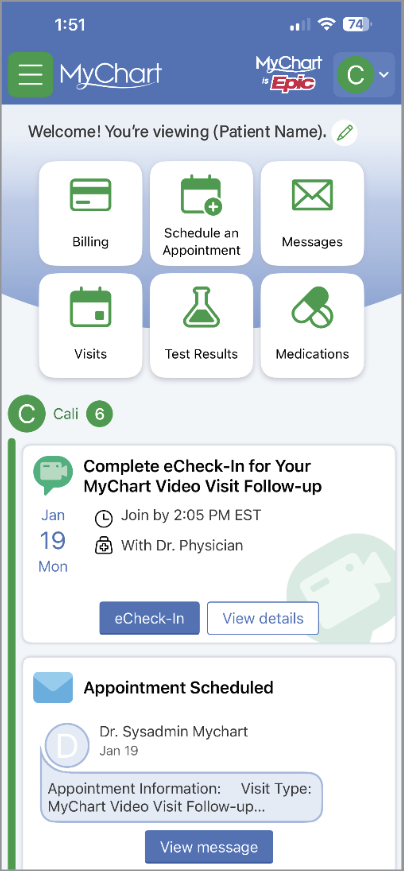
3. Be sure to approve the access to your camera and microphone.
4. After completing eCheck-In, you are ready to begin the video visit.
5. At this point, you can:
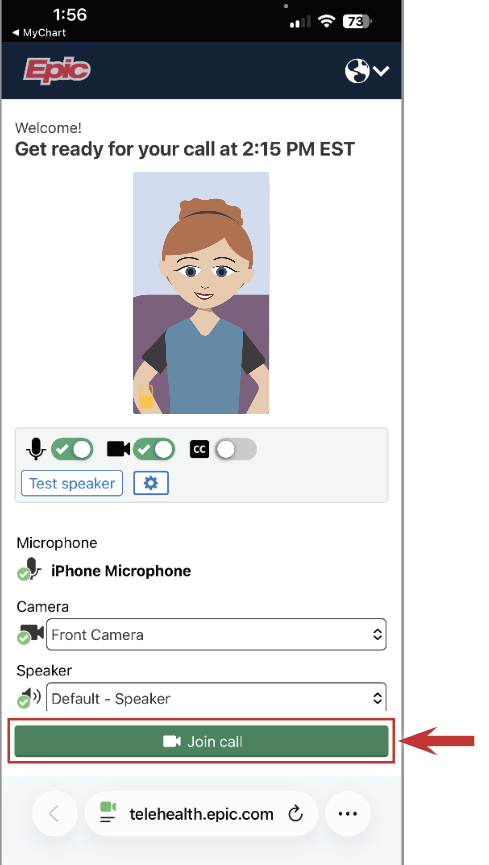
- Check your camera and microphone.
- Test your speakers.
- If you are ready to join: select “Join call.” The link is active 30 minutes before your appointment time.
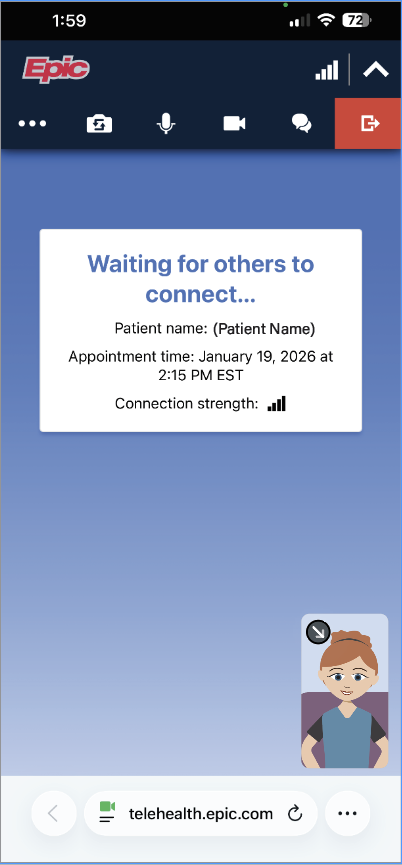
You will join a virtual waiting room until your provider joins the call too.
Tips
These are the supported computer browsers. If you are not using one of these, the video may not work:
|
iOS |
Android |
Windows |
MacOS |
|
|
Chrome |
Recommended |
Recommended |
Recommended |
Recommended |
|
Edge |
Not Supported |
Not recommended |
Recommended |
Recommended |
|
Safari |
Recommended |
N/A |
N/A |
Recommended |
|
Firefox |
Not recommended |
Not recommended |
Not recommended |
Not recommended |
|
Opera |
Not supported |
Not recommended |
Not recommended |
Not recommended |
|
Samsung Internet |
N/A |
Not recommended |
N/A |
N/A |
If you are using an Apple device and open the chat window, it may display too large. You can click the chat icon again to close it.
For MyChart technical issues, call (614) 938-3000.